- - -
- hours mins seconds
to get your checks by
Tomorrow, Nov. 6th

 0
0 You have no items in your shopping cart.
QuickBooks Check Compatibility Guide: What to Check Before You Buy
QuickBooks compatible checks are pre-printed business checks formatted to match the print layouts built into QuickBooks Desktop and QuickBooks Online. If the check position, sheet size, and MICR line follow the standard specifications, the checks will align correctly, whether you buy them from Intuit or from a third-party check printer.
That is the short answer. The longer answer is worth five minutes of your time, because ordering the wrong format is the most common reason a fresh box of checks ends up unusable. This guide explains exactly what to verify before you buy.
What Makes a Check QuickBooks Compatible?
QuickBooks does not require a special brand of check. It requires a specific layout.
When you print checks from QuickBooks, the software places the payee, date, amount, and signature line at fixed positions on the page. Checks compatible with QuickBooks are printed so the check body and stubs sit exactly where the software expects them.
Three things decide compatibility:
The layout. The check body must sit in the position your print setup expects. For voucher checks, that is the top of the page with two stubs below.
The sheet size. QuickBooks formats are built for standard 8.5 x 11 inch sheets that feed through any laser or inkjet printer.
The MICR line. The magnetic characters along the bottom edge carry your routing number, account number, and check number. On pre-printed checks, this line is already printed to banking specifications, so you do not need MICR toner or a special printer.
If those three match, your checks are Intuit-compatible in every practical sense. The software cannot tell who printed the paper.
QuickBooks Check Formats Explained: Voucher, Standard, and Wallet
QuickBooks supports three check formats. Your version of QuickBooks and the type of payments you run decide which one you need.
| Format | Layout | Best for | Works with |
|---|---|---|---|
| Voucher check | 1 check on top, 2 stubs below | Payroll and accounts payable | QuickBooks Desktop and QuickBooks Online |
| Standard check | 3 checks per page, no stubs | High-volume vendor payments | QuickBooks Desktop and QuickBooks Online |
| Wallet check | Personal-size check with stub | Owner draws, small accounts | QuickBooks Desktop |
Voucher Checks (Check on Top)
The voucher check is the format most QuickBooks users need. One check prints at the top of the page, and the two stubs below carry the payment detail: one copy for your vendor or employee, one for your records. Payroll runs need this format because pay stub details print on the vouchers.
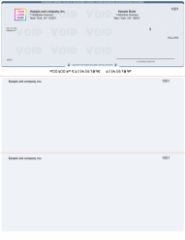
Order QuickBooks checks with check on top if you run payroll or accounts payable through QuickBooks.
Standard Checks (3 on a Page)
Standard checks print three to a sheet with no stubs. They are the economical choice when you write a high volume of checks and track details inside your check register rather than on paper stubs.
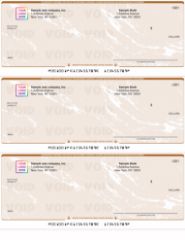
Order 3 on a page QuickBooks checks if volume matters more than printed stubs.
Wallet Checks (Personal Size)
Wallet checks are the personal-size format with a small stub. They suit owner draws and low-volume accounts where a full business sheet is more than you need.
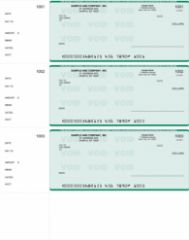
Order QuickBooks personal checks for personal-size printing from QuickBooks Desktop.
QuickBooks Desktop vs QuickBooks Online: Does It Change Which Checks You Buy?
Mostly no, with one exception.
Both QuickBooks Desktop and QuickBooks Online print on voucher checks and standard checks. If you use either format, the same pre-printed stock works across both versions.
The exception is wallet checks. QuickBooks Online does not include a wallet check print layout, so checks compatible with QuickBooks Online mean voucher or standard formats only. Desktop users can print all three.
One more difference worth knowing: QuickBooks Online sets check printing in Settings under "Print checks setup," where you choose voucher or standard and run an alignment print. Desktop handles it under File, Printer Setup, Check/PayCheck. Either way, the stock is the same. Only the print setup screen changes.
Do You Have to Buy Checks From Intuit?
No. QuickBooks works with any checks that follow the standard voucher, standard, or wallet specifications.
Third-party checks are fully compatible when the printer formats them correctly, and they are usually significantly cheaper for the same security paper. What matters is that the supplier prints your MICR line to banking standards and positions the check body to match QuickBooks print layouts.
Our QuickBooks checks are formatted for both QuickBooks Desktop and QuickBooks Online, print on any standard laser or inkjet printer, and ship the same day when you order before 2:00 PM EST. No MICR toner, no special printer, no minimum order.
What to Check Before You Buy: The 6-Point Checklist
Run through this list before you place any order. It takes two minutes and prevents the two most expensive mistakes: wrong format and wrong bank details.
- Match the format to your print setup. Open your check printing settings in QuickBooks and confirm whether it says voucher or standard. Buy that format.
- Confirm your bank details. Your routing number and account number print inside the MICR line. Copy them from an existing check on the same account, not from memory.
- Set the starting check number. Continue your current sequence so your check register stays clean and your bank does not flag duplicates.
- Check your printer type. Pre-printed checks run on any standard laser or inkjet printer. You only need MICR toner if you print bank details yourself on blank check stock, which is a different product.
- Decide on your logo early. Logo setup is free with black artwork on a white background in BMP or JPG format. Color logos are available on standard orders but are not eligible for overnight shipping.
- Know your deadline. Orders placed before 2:00 PM EST Monday through Friday print and ship the same day for next-day delivery. Orders placed between 2:00 and 5:00 PM EST can still stay on track for next-day arrival with an optional rush upgrade.
How to Fix QuickBooks Check Alignment Before It Costs You a Sheet
Alignment problems almost always come from a format mismatch or a skipped setup step, not from the checks themselves.
Before printing a full run, do this:
- Load one sheet of plain paper in the printer.
- In QuickBooks Online, go to Print checks setup and print the alignment sample. In Desktop, use Printer Setup and print a test.
- Hold the plain-paper print over a real check against the light. The amounts and payee should sit inside their boxes.
- If they are off, use the alignment grid in QuickBooks to shift the print position. Adjust and re-test on plain paper until it matches.
- Print one real check before you run the batch.
If the print lands in a completely different position rather than slightly off, you are holding the wrong format. Voucher settings will never align on standard 3-per-page stock, and no alignment grid can fix that.
Our checks follow the standard QuickBooks layouts, so the print setup should align on the first or second test. If you run a layout we have not listed, contact us through our FAQ and support page before ordering and we will confirm the correct format.
QuickBooks Checks and Other Software
If your office runs more than one accounting program, you do not need a separate supplier for each. The same computer checks family covers QuickBooks, Xero, Quicken, MYOB, Yardi, Deltek, Sage 50, DacEasy, and MAS 90. The layout is what changes: check on top for QuickBooks and Quicken, check in middle for Sage 50, check on bottom for DacEasy and MAS 90.
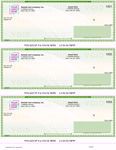
The most popular of those layouts, computer checks with check on top, is the same voucher position QuickBooks uses, which is why it doubles as the safe default when you are unsure.
Common Mistakes to Avoid When Buying QuickBooks Compatible Checks
After years of helping businesses replace unusable check orders, the same handful of mistakes come up again and again. Every one of them is avoidable.
Guessing the format instead of checking the print setup. The format QuickBooks expects is written in your own settings. Thirty seconds in the print setup screen removes all doubt, yet most wrong orders happen because someone ordered from memory.
Typing bank details instead of copying them. A single wrong digit in the routing or account number makes the entire box unusable. Always copy both numbers from an existing check drawn on the same account.
Restarting the check number sequence. If your last check was 4520, your new order should start at 4521. Restarting from 1001 confuses your check register and can trigger duplicate warnings at the bank.
Ordering business checks for a personal account, or the reverse. The account type decides the product. Wallet checks exist precisely for personal-size printing, so match the check to the account it draws on.
Waiting until the drawer is empty. Even with next-day delivery available, ordering with a few checks still in hand means a mistake or a weekend never becomes an emergency.
Security Features Worth Having on Your Business Checks
Compatibility gets your checks through the printer. Security keeps them safe after they leave your office.
Business checks carry your routing and account numbers in plain sight, which is why quality check stock includes built-in fraud deterrents rather than plain paper. When you compare options, look for security paper that resists tampering and alteration, printed warning features, and a clearly printed MICR line that banks can process cleanly through automated equipment.
Our business checks include multiple security features as standard, along with a range of color options, so protecting your account does not require a premium product tier. Pair that with sensible office habits, such as storing unused check stock locked away and reconciling your check register against your bank statement regularly, and you close most of the common fraud gaps small businesses face.
Ordering QuickBooks Compatible Checks With Next-Day Delivery
Here is what the timeline looks like when you order from us:
- Order before 2:00 PM EST, Monday through Friday. Your checks print, pack, and ship the same business day.
- Shipping is free on every order, including overnight, with UPS Overnight Air delivering by 10:30 AM in most commercial areas.
- You need four things at checkout: routing number, account number, starting check number, and your business name and address as it should print.
- We have printed and shipped business checks since 1997, and we back the timeline with an on-time shipping guarantee.
If your check drawer is already empty and payroll is close, keep the order simple: skip the proof, skip the color logo, and double-check the delivery address. Those three choices protect your next-day arrival more than anything else.
About the Author
This guide was written by the Checks Next Day production team, which has printed and shipped business checks for companies across the United States since 1997. The team works daily with QuickBooks, Xero, Sage 50, and other accounting software formats, and reviews every guide against current print specifications before publishing.