

• - -
  • hours mins seconds

to get your checks by

Tomorrow, Sep. 1st

Menu

Blog

Computer Checks Software: What You Actually Need to Print Your Own Checks -Monday, August 31, 2026

Quick Summary

  • Computer checks software falls into two groups: accounting programs with check printing built in, and dedicated check printing programs that do nothing else.
  • Most businesses already own what they need. If you run QuickBooks, Quicken, Sage 50, Xero, MYOB, Deltek, or Yardi, check printing is already included.
  • What your software needs from your paper depends on one thing: whether your bank details are pre-printed or generated at print time.
  • Pre-printed computer checks work with any of this software and need no special toner. Your program prints only the variable data.
  • Blank check stock requires software that can generate a MICR line, plus MICR toner and a compatible laser printer.
  • The most common failure is not software choice. It is a layout mismatch between the software and the check format ordered.

You want to stop hand-writing checks and start printing them. The question that comes up first is what computer checks software you need, and whether you have to buy something new.

For most businesses the answer is no. The software is probably already on your machine. What matters more is understanding what your program expects from the paper you feed it, because that is where orders go wrong.

What Computer Checks Software Actually Does

Computer checks software prints payment data onto check paper. That is the whole job.

Depending on the setup, it prints either a little or a lot. On pre-printed computer checks, your bank details and MICR line are already on the paper, so the software prints only the payee, date, amount, memo, and stub detail.

On blank check stock, the software prints everything, including your bank name, routing number, account number, and the MICR line itself.

That difference drives every other decision on this page.

The Two Categories of Computer Checks Software

Accounting software with check printing built in

This is what most businesses use, and it is usually the right answer because the check is generated from a bill or payroll record you have already entered. No double entry, and the payment posts to your books automatically.

Programs in this category include QuickBooks Desktop and QuickBooks Online, Quicken, Sage 50, Xero, MYOB, Deltek, and Yardi. We stock formats cut for each of them:

If you already run one of these, you do not need to buy additional software. You need check stock cut to the layout your program expects.

Dedicated check printing software

This category does one thing: it produces checks. It does not track bills, run payroll, or reconcile accounts.

It exists for two situations. First, businesses that need to print on blank check stock and whose accounting program cannot generate a MICR line. Second, businesses that write checks from a bank account their accounting software does not track, such as a separate trust or escrow account.

If your accounting program already prints checks and you use pre-printed stock, this category is usually unnecessary.

How to Tell Which Setup You Have

Work through this in order and you will land on the right answer in about two minutes.

QuestionIf YesIf No
Do you already use accounting software?Check whether it has a print checks function. It probably doesYou will need dedicated check printing software
Does it list a check style or check layout setting?That setting tells you which format to orderLook for a printer setup or check alignment menu
Do you want your bank details pre-printed?Order pre-printed computer checks. No special toner neededOrder blank stock and confirm your software can generate MICR
Do you have a laser printer?You are set for either optionPre-printed checks are the safer route

What Your Software Needs From the Paper

This is the part that causes the most wasted orders, so it is worth being precise.

Layout position

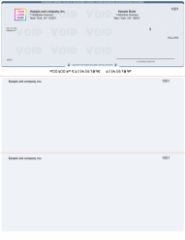
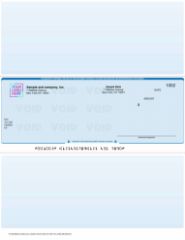
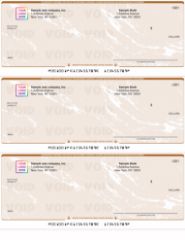
Every program expects the check body in a specific place on the sheet. The four standard positions are check on top with two stubs below, check in the middle with a stub above and below, check on the bottom with two stubs above, and three checks per page with no stubs.

Your software's check style setting corresponds directly to one of these. Order a different position and the printed data lands in the wrong place on the page. The check is unusable and the whole batch is wasted.

Our guide to the types of business checks covers what each position is designed for.

Sheet size and feed direction

Standard check sheets are letter size and feed through a laser printer like ordinary paper. What differs is which edge leads. Getting this backward prints everything upside down relative to the perforations, which is an easy mistake and an obvious one once you run a test sheet.

MICR requirements

The MICR line is the row of characters along the bottom edge that bank machines read. It encodes your routing number, account number, and check number in magnetic ink.

On pre-printed checks the MICR line is already applied at the factory using magnetic ink, so your printer and toner do not matter for that part.

On blank stock the MICR line is printed by you, which means two things must be true. Your software must be able to generate a proper MICR line with correct character spacing, and you must load MICR toner rather than standard toner. Standard toner produces characters that look identical to the eye and fail at the bank, because there is no magnetic signal to read.

Do You Need to Buy Software at All?

Usually not. Run this check before you go looking for a new program.

Open your accounting program and look for a payment or banking menu. If you find an option to print checks, write checks, or pay bills by check, you already have computer checks software. Everything else is a paper decision.

The cases where you genuinely need to buy something are narrower than most people expect. You have no accounting software at all. Your accounting software tracks the account but cannot print to it. You need to print on blank stock and your program cannot produce a MICR line. Or you are printing from a bank account you deliberately keep outside your books.

Outside those situations, adding check printing software adds a step rather than removing one.

Pre-Printed vs Blank Stock: The Software Angle

FactorPre-Printed Computer ChecksBlank Check Stock
Software requirementAny program that prints checksMust generate a MICR line
TonerStandard tonerMICR toner required
PrinterLaser or inkjet, depending on layoutLaser printer
Bank detailsPrinted at the factoryPrinted by you at print time
Setup effortLow. Align and printHigher. Configure MICR, verify output
Multiple accountsSeparate stock per accountOne stock, switch accounts in software
Bank changeReorder neededUpdate a field

The pattern is straightforward. Pre-printed stock moves the complexity to the supplier. Blank stock moves it to your software and printer, and returns flexibility if you manage several accounts. Our guide to blank check stock covers that setup in detail.

Printer Requirements Most Guides Skip

Your software can be configured perfectly and still produce unusable checks if the printer is wrong for the job.

Laser is the default. Laser output resists water and smearing far better than inkjet, which matters on a document that passes through mail, hands, and bank equipment.

MICR toner is a separate cartridge. It is not a setting. If you print blank stock, you buy magnetic toner and install it. Some businesses keep a dedicated printer loaded with MICR toner purely for check runs.

Duplex must be off. Automatic two-sided printing on a check sheet is a wasted sheet every time.

Scaling must be set to actual size. Any fit to page or shrink to printable area setting shifts the MICR line out of tolerance. The characters have to sit within a defined band along the bottom edge, and scaling moves them.

The Alignment Test That Saves Whole Boxes

Do this once, the day your checks arrive, and never on the morning payroll is due.

  1. Load plain paper, not check stock.
  2. Print a single check from your software.
  3. Hold the printout against a real check sheet up to a light.
  4. Confirm the payee line, amount, date, and stub fields all land inside their boxes.
  5. Adjust the alignment setting in your software if anything is off, then repeat.
  6. Only once it lines up, load real stock and print one live check.

For QuickBooks specifically, our walkthrough on ordering and printing checks in QuickBooks Online covers the alignment menu step by step, and the QuickBooks check compatibility guide confirms which format to order before you get that far.

Common Computer Checks Software Problems

Everything prints slightly off. Almost always a scaling setting. Set print at actual size and disable fit to page.

The bank rejected a check that looked fine. On blank stock, this points to standard toner instead of MICR toner, or a scaled MICR line sitting outside tolerance.

Data lands on the stub instead of the check. The check style in your software does not match the position you ordered. Change the software setting if the stock is correct, or reorder if it is not.

Check numbers do not match your register. Set the starting number in your software to continue from your last issued check rather than restarting. Duplicate numbers break reconciliation.

Only the first check on the sheet prints. Common on three-per-page stock when the software is set to a voucher layout. Those are different formats and are not interchangeable.

Matching Your Software to the Right Check Format

If you are unsure which format your program expects, the fastest route is to check the layout setting inside the software itself, since that is the authoritative answer for your specific version.

For a format-by-format breakdown across the major accounting programs, see our guide to which computer checks work with QuickBooks, Quicken, and Sage 50.

If you are still deciding whether printed checks make sense at your volume, our comparison of computer checks vs manual checks covers where the math flips. For occasional hand-written payments, manual business checks remain the simpler option.

What to Have Ready Before You Order

  • The name and version of your accounting or check printing software
  • The check style or layout setting from inside that program
  • Your routing number and account number from a current statement
  • Your next starting check number
  • Your printer type, and whether you have MICR toner if ordering blank stock
  • Business name and address exactly as you want them printed

If security is a priority, our high-security business checks guide covers which paper features stop which type of fraud. For payroll runs specifically, see payroll business checks.

The Bottom Line on Computer Checks Software

Computer checks software is rarely the thing you are missing. If you run accounting software, you almost certainly have it already.

What decides whether your checks work is the match between your software's layout setting and the check format you order, plus MICR toner if you print on blank stock. Confirm the layout setting before ordering, run the alignment test on plain paper, and the rest is routine.

Not sure which format your setup needs? Contact us with your software name and we will point you to the right layout before you order.

About the Author

The Checks Next Day team prints and ships business checks for U.S. companies every business day, with same-day production and next-day delivery. Matching check formats to accounting software is one of the most common questions that comes up before an order, and this guide reflects what actually causes problems in practice. Software features and layout settings vary by version, so confirm the check style setting inside your own program before ordering.


Do Blank Checks Expire? -Friday, August 28, 2026

Quick Summary

  • No. Blank checks do not expire. There is no date after which an unwritten check becomes invalid.
  • What makes an unused check unusable is the account behind it, not the age of the paper. A closed account, a changed routing number, or a bank merger will stop it cold.
  • The widely quoted six-month rule applies only to checks that have already been written and dated, not to blank ones sitting in a drawer.
  • Unprinted blank check stock is a separate question. The paper does not expire either, but security features and print quality degrade if it is stored badly.
  • Run a four-point check before using old stock: account open, routing and account numbers current, business details accurate, numbering not duplicated.
  • Old checks tied to a closed account are a fraud liability. Shred them rather than filing them away.

You open a drawer and find a box of checks from three years ago. Or a half-used carton of blank stock behind the printer. The obvious question follows: are these still good, or is this money about to be wasted?

The answer surprises most people. Blank checks do not expire. There is no shelf life, no printed cutoff, no rule that turns an unwritten check into scrap paper after a certain number of months.

But that is only half the answer, and the half that gets people into trouble is the other one. Plenty of blank checks become unusable. They just do not become unusable because of time.

The Short Answer: Blank Checks Do Not Expire

A blank check is a payment instruction that has not been issued yet. Nothing has been promised, no date has been set, and no bank has been asked to do anything. There is nothing for a clock to run against.

A check only starts aging once it has been filled in and dated. Until then, the paper in your drawer is exactly as valid as the paper that arrived this morning.

This holds for every format: computer checks, manual business checks, personal checks, and unprinted blank check stock. None of them carry an expiration date.

So if a supplier ever tells you your check stock has "expired," ask what specifically has changed. The answer will always be something about the account or the printing, never the calendar.

What Actually Makes an Unused Check Unusable

Four things end the useful life of a blank check. Every one of them is a change in circumstances, not a passage of time.

1. The account was closed

This is the big one. A check is only an instruction to a specific account at a specific bank. Close the account and every remaining check in the box becomes worthless immediately, whether it was printed yesterday or in 2019.

If you switched banks, consolidated accounts after a merger, or restructured the business and opened a new operating account, the old checks are done. There is no grace period.

2. The routing number changed

Banks merge constantly, and routing numbers get retired when they do. Your account may survive the merger with the same account number while the routing number quietly changes underneath it.

Checks carrying a retired routing number will often be rejected in processing, and the failure usually shows up days later as a returned item rather than immediately. This is the single most common reason a business finds out its old stock is dead, and it is almost always discovered the hard way.

3. The printed business details are out of date

An old address, a previous business name, or a former DBA will not usually stop a check from clearing. The MICR line at the bottom is what the bank actually reads.

The problem is commercial, not mechanical. A check showing an address you left two years ago signals to your vendor that something is off. Some payees will simply refuse it. Others will accept it and quietly update your record with the wrong address.

4. The check numbers overlap with current stock

If you reordered checks and the new sequence restarted at a number your old box already covers, you now have duplicate check numbers in circulation.

Duplicates break bank reconciliation, confuse your accounting software, and can trigger fraud flags at the bank. Before using found stock, confirm its number range does not collide with anything you have issued recently.

Blank Checks and Blank Check Stock Are Two Different Questions

"Do blank checks expire" gets asked about two genuinely different things, and the answers diverge.

What You HaveDoes It Expire?What to Verify
Pre-printed unused checks
(your details already on them)
NoAccount open, routing number current, details accurate, numbering clear
Unprinted blank check stock
(security paper, no bank details)
NoPaper condition, security features intact, MICR prints cleanly
A check already written and datedEffectively yesGenerally six months before a bank may decline it

The first two never expire. The third does, in practice, and that is where the six-month figure everyone half-remembers actually comes from.

Does Unprinted Check Stock Have a Shelf Life?

Not formally. Blank check stock is security paper. It carries no bank details, no dates, and no account information, so there is nothing on it that can go stale.

What can degrade is the paper's performance, and that is entirely down to storage.

What actually degrades

Moisture and curl. Paper absorbs humidity. Stock stored in a damp basement or a hot warehouse will curl at the edges, and curled sheets misfeed, jam, and print out of alignment. This is the most common real-world failure with older stock.

Toner adhesion. MICR toner needs a clean, flat, dry surface to bond properly. Paper that has absorbed moisture can produce a MICR line that reads inconsistently at the bank, which causes rejected items even though the check looks perfect to the eye.

Heat-sensitive features. Some security papers carry a heat-reactive icon that changes color with warmth from your finger. Prolonged storage in a hot space can wear this down, weakening a fraud check that a teller may rely on.

Light exposure. Fluorescent fibers and certain watermarks fade with sustained direct light. Stock stored on an open shelf near a window ages faster than stock in a closed cabinet.

Our blank check security features guide explains which of these features stops which type of fraud, and what to verify before you order.

How to store check stock properly

  • Keep it flat in the original carton, never standing on edge.
  • Store in a climate-controlled interior room, away from exterior walls.
  • Keep it out of direct light and away from heat sources or vents.
  • Lock it up. Blank stock is one of the higher-risk items in any office.
  • Use the oldest cartons first so nothing sits for years.

Stored properly, check stock stays perfectly usable for years. Stored badly, it can become unreliable within a single humid summer.

What Does Expire: Checks You Have Already Written

This is where the confusion starts, so it is worth stating plainly.

Once a check is filled in and dated, a clock begins. Under standard U.S. banking practice, a bank is not obligated to pay an ordinary check presented more than six months after its date. It may still choose to, at its discretion, but it does not have to.

That rule attaches to the date written on the check. A blank check has no date, so the rule has nothing to attach to. An unwritten check from 2019 is not a stale check. It is simply an unused check.

The practical implication cuts the other way from what most people assume. Finding old blank checks is fine. Finding an old written check that never got cashed is the situation that needs attention.

Four-Point Check Before You Use Old Blank Checks

Run this before writing anything on stock that has been sitting for a while.

CheckHow to VerifyIf It Fails
Is the account still open?Log in to online banking or call the bankShred the checks. They are dead
Does the routing number match?Compare the number on the check to your current bank recordReorder. Do not risk a returned item
Are the business details current?Read the name, address, and phone printed on the faceReorder if anything is wrong
Do the numbers overlap?Compare the range to your last issued check numberSkip past the overlap or reorder

Two minutes of verification is cheaper than a returned item, a vendor phone call, and a reconciliation that will not balance.

Old Blank Checks Are a Security Liability

Checks tied to a closed account are not harmless paper. They still display your routing number, account number, business name, and address in plain view.

That combination is enough to attempt fraudulent debits against the account history, to build a convincing counterfeit, or to support a social engineering attempt against your bank. A closed account does not make the printed data safe.

Treat obsolete checks as sensitive documents:

  • Cross-cut shred them. A strip shredder is not sufficient for a MICR line.
  • Do not recycle them intact. Recycling bins are not secure.
  • Do not keep "just one" as a record. If you need account details on file, use a voided check from your current stock.
  • Log what you destroyed. Note the check number range so a gap in your sequence is explainable later.

The same applies to unprinted stock you no longer need. It carries no account data, but it does carry live security features, which makes it valuable to anyone looking to produce a convincing forgery.

When to Reorder Instead of Using Old Stock

Reorder rather than pushing through old inventory when any of these are true.

Your bank information changed. Non-negotiable. Failed checks cost more than a new order.

The paper is curled, spotted, or discolored. Print quality problems become MICR read failures, and MICR failures become returned items.

You have switched software. If you moved to a different accounting package, the layout your old stock was cut for may no longer match. Our QuickBooks checks and format-specific options in types of business checks cover the alignment differences.

Your security requirements have risen. If your bank enrolled you in Positive Pay, or you have had a fraud incident, older stock may not carry the features you now need. See high-security business checks.

You are close to running out anyway. Running out mid-payroll is far more expensive than ordering early. If you are already there, our out of checks guide covers same-day production and next-day delivery.

A Note on Blank Check Stock Specifically

If you print on unprinted stock rather than ordering pre-printed checks, your exposure to this whole question is lower. The bank details are generated at print time by your software, so a routing number change means updating one field, not discarding a carton.

That flexibility is one of the real advantages of stock-based printing, and it is covered in more depth in our guide to blank check stock. If you want to see the layouts before ordering, our sample blank check templates show the standard dimensions and field positions.


About the Author

The Checks Next Day editorial team prints and ships business checks for U.S. companies every business day, with same-day production and next-day delivery. Working directly with businesses that reorder after bank mergers, account changes, and storage mishaps is where the practical guidance in this article comes from. This article is general information for U.S. businesses and is not legal, banking, or accounting advice. Confirm your account and routing details with your bank before using older check stock.


How Long Is a Business Check Good For? -Thursday, August 27, 2026

Quick Summary

  • A business check is generally good for six months, or 180 days, from the date written on it.
  • This comes from UCC Section 4-404: a bank is under no obligation to pay it, but is not forbidden from doing so.
  • "Void after 90 days" is a business instruction, not a legal expiration. Many banks still honor the check up to 180 days.
  • Certified checks are excluded from the six-month rule. U.S. Treasury checks run twelve months.
  • A stale check does not erase the debt. If you owed the money, you still owe it.
  • If a check you issued goes uncashed, reissue it. Unclaimed funds eventually go to the state through escheatment.

If you write business checks, sooner or later one will sit uncashed. A vendor misplaces it. A former employee moves without a forwarding address. A check gets stapled inside a folder and forgotten for eight months.

Then the question lands on your desk: is that check still good? The short answer is six months. The useful answer is more complicated, and getting it wrong costs real money, either as a surprise withdrawal you did not budget for or a state unclaimed property filing you did not know you owed.

The Six-Month Rule and Where It Comes From

The rule everyone quotes comes from the Uniform Commercial Code, Section 4-404. In plain terms:

A bank is under no obligation to a customer having a checking account to pay a check, other than a certified check, which is presented more than six months after its date, but it may charge its customer's account for a payment made thereafter in good faith.

Two things get misquoted constantly. First, the bank is not obligated to pay. It is not prohibited from paying. A bank can honor a nine-month-old check and charge your account, as long as it acts in good faith. Second, certified checks are carved out entirely.

So "expired" is the wrong mental model. A business check does not stop existing at 180 days. It moves from a payment the bank will routinely process into one it may decline at its own discretion. Most banks treat six months as an internal policy trigger. Amount matters too: a $60 check that is seven months old often clears without anyone looking twice. A $60,000 check gets a phone call.

What "Void After 90 Days" Really Means

Plenty of business checks carry a printed line reading "Void after 90 days" or "Void after 60 days." This is one of the most misunderstood markings in business banking.

That line is not a legal expiration date. It is an instruction from the issuing business to the payee, printed on the check face to encourage prompt deposit. It carries no independent force under UCC 4-404, and banks generally still work from the six-month standard.

It is still useful. It signals urgency, which measurably reduces uncashed checks, and it gives your accounting team a defensible follow-up policy. What it does not do is guarantee the check bounces on day 91. Do not build a cash flow assumption on that printed line.

Do All Checks Expire at Six Months?

No. Different instruments carry different timelines, and mixing them up is where businesses get burned.

Check TypeGeneral ValidityNotes
Business check6 months (180 days)UCC 4-404. Bank may honor later in good faith
Personal check6 months (180 days)Same standard as business checks
Payroll check6 months (180 days)State wage laws add employer obligations
Certified checkNo six-month cutoffExplicitly excluded from UCC 4-404
Cashier's checkVaries by issuerFunds already withdrawn. May carry issuer "void after" dates
U.S. Treasury check12 monthsFederal checks run a full year
Money orderGenerally no hard expiryMay accrue service fees over time

The pattern is straightforward. The more prefunded the instrument, the less the six-month rule matters. A regular business check is a payment instruction drawn on a live account, so time introduces risk. A certified check already has funds set aside.

A Stale Check Does Not Cancel the Debt

This is the most important point for anyone issuing checks, and most explanations skip it. If your business owed a vendor $4,200 and wrote a check that was never cashed, you still owe the $4,200. The check was the method of payment, not the payment itself. When it goes stale, the obligation snaps right back into place.

The same applies in reverse. If a customer paid you with a check you never deposited, you have not lost the right to be paid, only the convenience of that piece of paper. This is why "it expired, so we can reverse the expense" is a bookkeeping mistake. The money is still owed to someone. The only question is whether it goes to the payee or to the state.

What to Do With an Uncashed Business Check You Issued

Work this sequence in order.

Step 1: Confirm it is genuinely outstanding

Match your bank statement against your check register. A check you think is uncashed is sometimes just miscoded.

Step 2: Contact the payee before you touch the bank

A short email works. Confirm whether they still hold the check, whether it was lost, and where a replacement should go.

Step 3: Place a stop payment on the original

Once you know the original will not be deposited, stop payment on that specific check number. Under UCC 4-403 a stop payment order is effective for a defined period and typically needs renewal, so calendar the expiry date.

Never issue a replacement before the stop payment is confirmed. If both checks clear, you have paid twice, and recovery depends entirely on the payee's cooperation.

Step 4: Reissue with a new check number

Write the replacement fresh, from current stock, with a new sequential number. If you are handwriting it, follow your normal process for writing a business check by hand.

Step 5: Document it

Original check number, stop payment date, replacement check number. Three fields in the register.

If you are low on stock and need the replacement out quickly, our same-day production and next-day delivery covers orders placed before the daily cutoff.

Escheatment: What Happens if Nobody Ever Cashes It

If a check stays uncashed long enough, it does not become your money. It becomes the state's money.

This is escheatment, and it runs under state unclaimed property law rather than the UCC. The general shape:

  1. The check ages past your internal threshold and sits on your outstanding check list.
  2. The dormancy period runs. Length varies by state and payment type. Uncashed payroll checks often carry a shorter period than vendor checks.
  3. Due diligence notice. Most states require a written attempt to reach the payee at their last known address.
  4. Reporting and remittance. If the payee never responds, you file an unclaimed property report and remit the funds.

The takeaway: an uncashed check is a liability on your books, not a windfall. Writing it off to income creates exposure. States do audit for unclaimed property. Confirm your dormancy periods with your accountant or state treasury office.

Tracking Uncashed Checks in Your Books

Nearly every stale check problem starts as a reconciliation problem. Fix the process and the problem mostly disappears.

Reconcile monthly, without exception. Outstanding items are easy to chase at 30 days and painful at 300. Treat your outstanding check list as an aging report: past 60 days gets a follow-up email, past 120 days gets a phone call and a stop payment decision. Keep check numbers strictly sequential, because gaps are the first signal of a missing or misused check.

Use the stub. A voucher-style check gives you a record attached to the payment at the moment it is written, and carbonless duplicates on manual checks do the same. If you print through accounting software, QuickBooks-compatible checks keep the register and the printed check in sync automatically.

Does the Check Format Change How Long It Stays Valid?

The validity window is identical regardless of format. Six months is six months whether the check came off a laser printer or out of a three-ring binder. What format changes is how easily you catch a check before it goes stale.

Voucher and check-on-top formats carry one or two stubs below the check, giving you remittance detail and an internal record on the same sheet. These are standard in computer checks.

Manual business checks with carbonless duplicates leave a physical copy in the book the moment you write, often the most reliable tracking method for low-volume businesses. Our manual business checks come in several stub configurations.

Blank check stock prints the full check including the MICR line at run time, so number control is tight by default. See our blank check stock options, or the full breakdown in our guide to the types of business checks.

Business Checks vs Personal Checks: Same Rule, Different Exposure

The six-month standard applies identically to personal checks and business checks. UCC 4-404 does not distinguish between them. The exposure is what differs. A personal check is usually one payment from one account. A business writes hundreds, often with multiple signers and a bookkeeper who did not write them, and carries obligations individuals do not, including unclaimed property reporting and state wage payment rules. Our comparison of business checks vs personal checks covers the practical differences.

Payroll Checks and Uncashed Wages

Unpaid wages are not an ordinary accounts payable item. State wage payment laws generally treat them as money still owed to the employee, and uncashed paychecks typically carry shorter dormancy periods than vendor checks before escheatment applies. If a former employee never cashed a final paycheck, do not write it off. Attempt contact, document the attempt, and follow your state's unclaimed wages process. Our payroll business checks include the stub formats needed for proper wage documentation.

What About Postdated Checks?

A stale check is older than six months. A postdated check is dated in the future, and it runs on a different rule. Under UCC 4-401, a bank may pay a postdated check before its stated date unless the account holder gave reasonable advance notice describing the check with certainty. Without that notice, the bank can process it early and is not liable. If timing matters, notify your bank in writing, in advance, with the check number and amount.

Preventing Stale Checks in the First Place

PracticeWhy It Works
Mail checks the day they are writtenEvery day in a drawer is a day off the useful window
Confirm the payee's address before printingUndeliverable mail is a leading cause of uncashed checks
Print "Void after 90 days" if it fits your workflowSignals urgency and supports internal follow-up policy
Reconcile monthlyCatches outstanding items at 30 days, not 300
Age your outstanding check listTurns a passive list into an action list
Keep check numbers sequential and gap-freeGaps are the first warning sign of a lost check
Use security-featured check stockReduces fraud risk on checks that circulate longer than intended

That last one matters. A check circulating for five months carries five months of exposure. Watermarks, microprinting, chemical-reactive paper, and heat-sensitive icons all reduce the risk that an aging check becomes a fraud loss. Our high-security business checks guide covers which features stop which type of fraud.

About the Author

The Checks Next Day editorial team works with U.S. small businesses, bookkeepers, and accounting professionals every day, printing and shipping business checks with same-day production and next-day delivery. That daily contact with real accounts payable and payroll workflows informs everything published here. This article is general information for U.S. businesses and is not legal, tax, or accounting advice. Confirm your specific obligations, particularly around unclaimed property, with your accountant or state treasury office.


Business Checks vs Personal Checks: Which Does Your Business Actually Need? -Wednesday, August 26, 2026

Most guides on this topic reach the same conclusion in the same paragraph: use business checks. Which is fine advice, except it skips the question the person is actually asking.

If you run a one-person business and write six checks a year, you are not really asking what the differences are. You are asking whether the extra cost and the bigger minimum order are worth it for you.

This guide covers both. The real differences, and an honest answer on when personal checks are good enough.

Quick Answer

The core difference is which account the money comes from. Personal checks draw on an individual account and carry your name. Business checks draw on a business account and carry the company name.

Beyond that:

  • Size. Business checks are larger, with more room for payee detail and signatures
  • Record keeping. Business formats include perforated stubs or vouchers. Personal checks generally do not
  • Software. Business checks come in layouts built for QuickBooks, Quicken and Sage. Personal checks do not
  • Security. Business stock typically carries more anti-fraud features
  • Cost per check. Business checks are often cheaper per check, because they come in larger quantities

When personal checks are genuinely fine: a sole proprietor with no employees, no separate business account, and very low check volume.

When to switch: the moment you open a business bank account, hire anyone, take on regular vendors, or start running your books through accounting software.

The Core Difference: Where the Money Comes From

Everything else follows from this one thing.

What a Personal Check Is

A personal check draws on an individual checking account. It carries your name and address, not a company name.

It handles the payments that sit outside a business ledger. Rent to a landlord who will not take transfers. A contractor working on your house. Tuition, a deposit, a gift.

Personal checks come in quantities of 50 or 100, which suits how most people actually use them. Slowly, and unpredictably.

What a Business Check Is

A business check draws on a business checking account and carries the company name and address. Many carry a logo.

The account is the legal distinction. A check printed with a business name has to match an account held in that name. Your bank will not accept checks that do not.

The business check range splits into formats built for different jobs, which is the practical difference you feel day to day.

Business Checks vs Personal Checks at a Glance

FeatureBusiness checksPersonal checks
Account drawn onBusiness checking accountPersonal checking account
Name printedCompany name and addressIndividual name and address
Typical sizeLarger, roughly 8 inches wideSmaller, wallet size
Record keepingPerforated stubs or vouchersSmall register booklet
Software layoutsBuilt for QuickBooks, Quicken, Sage 50Generally none
LogoCommonly includedRarely
Signature linesCan support two signersOne signer
Typical order size300 to 60050 to 100

Size and Writing Room

Business checks are physically bigger. That is not cosmetic.

The extra width gives you a longer payee line, which matters when you are writing out a full legal company name. It gives you a usable memo field for an invoice number. And it leaves room for a logo and a second signature line if you need one.

Try writing "Northgate Supply Company LLC" on a wallet-size personal check and you will see the problem immediately.

If you are mailing checks, the size affects your envelopes too. Our check and envelope size guide covers the dimensions.

Security Features

Both types carry security features. Business stock generally carries more of them.

Typical business check protections include watermarks, microprinting on the signature line, chemically sensitive paper that reacts to solvents, and heat-sensitive ink.

The reason for the gap is exposure. Business checks tend to be written for larger amounts, to more counterparties, and are handled by more people. That is a bigger attack surface.

Our guide to high security business checks explains what each feature actually does.

Record Keeping: The Difference That Costs You Later

This is the difference most comparisons mention in passing and nobody explains properly.

Business check formats include a record-keeping section attached to every check. On manual business checks that is a perforated stub beside each check. On computer checks it is a voucher printed below.

Personal checks give you a small register booklet, separate from the check itself.

Here is what that costs you in practice. A completed stub tells you which invoice a payment cleared. A bank statement only tells you money left the account on a date. Three months later, when you are reconciling or answering a question from your accountant, one of those is useful and the other is not.

There is a second consequence. Personal checks have no payroll layout, so there is nowhere to record pay detail. If you are paying anyone, that is a real gap. Manual payroll checks have stubs laid out for exactly that.

Software Compatibility

If you run your books through software, this decides the question on its own.

Computer checks come in layouts that match what accounting software expects. Check on top for QuickBooks and Quicken. Check in middle for Sage 50. Check on bottom for other systems. Three on a page for volume.

Personal checks have no equivalent. You cannot feed them through a printer and have your software fill them in.

If you specifically use QuickBooks, our QuickBooks compatible checks are formatted and tested for it.

One exception worth knowing. QuickBooks personal checks exist for people who track personal finances in QuickBooks. Three to a page with a stub on the left.

What They Actually Cost

This is where the received wisdom gets it backwards.

People assume business checks are the expensive option. Measured per check, the opposite is usually true. Business checks are printed in much larger runs, and that brings the unit cost down well below what personal checks work out at.

The catch is the order size, not the price.

Check typeTypical order quantitiesRelative cost per check
Personal checks50 or 100Higher per check
Manual business checks300 or 600Considerably lower per check

So the total you pay at checkout is larger for business checks, even though each individual check costs you less.

That is the real objection, and it is a fair one. If you write five checks a year, 300 checks is a sixty-year supply. Buying cheaper per unit does not help when you will never use the units.

Current pricing for every quantity appears on each product page as you select an option.

Can You Just Use Personal Checks for Your Business?

Most guides will not answer this straight. Here is a straight answer.

When Personal Checks Are Genuinely Fine

Personal checks can work for a business if all of the following are true:

  • You are a sole proprietor operating under your own name
  • You have no employees and no contractors on a regular cycle
  • You have no separate business bank account yet
  • Your check volume is genuinely low, a handful a year
  • You are not running books through accounting software

If that describes you, ordering 300 business checks is not a smart purchase. A box of 100 personal checks will serve you for years and you can revisit the decision when something changes.

We sell both, so we have no reason to tell you otherwise.

When They Stop Being Fine

Any one of these is a signal to switch:

  1. You open a business bank account. Checks must match the account name, so this decides it automatically
  2. You hire anyone. Personal checks have no payroll layout and no pay detail stub
  3. You take on regular vendors. Suppliers expect a company name on the check, and you need invoice references on stubs
  4. You start using accounting software. Personal checks cannot print from it
  5. You form an LLC or corporation. A separate entity should pay from its own account
  6. Check volume climbs. Past twenty or thirty a year, the per-check saving starts to matter

The Bookkeeping Problem

Even where personal checks are workable, paying business expenses from a personal account creates a specific headache called commingling.

Every business payment sits mixed in with groceries and utilities. At tax time somebody has to separate them, and that somebody is either you or an accountant billing you hourly.

It also weakens your evidence. A business check drawn on a business account is clean documentation of a business expense. A personal check is a payment you then have to explain.

For LLCs and corporations there is an additional consideration. Keeping business and personal finances separate is part of maintaining the entity as genuinely separate. Speak to your accountant about how that applies to your situation, because it varies.

What Changes by Business Type

Sole Proprietor

The most flexible position. There is no separate legal entity, so personal checks are workable at low volume. Once you have a business account or any regular payments going out, business checks make more sense.

Single Member LLC

Even though a single member LLC is often taxed like a sole proprietorship, it is a separate legal entity. Most accountants will tell you to keep its money separate from yours from day one. That means a business account, and business checks.

Partnership

Business checks, without much debate. More than one person has a claim on the money, and you may want two signature lines above a certain amount.

Corporation

Business checks, always. The entity is fully separate and paying corporate expenses from a personal account creates problems that are far more expensive to fix than a box of checks.

Depositing and Cashing: Practical Differences

A few things catch people out.

Cashing a business check made out to a business is harder than cashing a personal one. Banks often want it deposited into the business account rather than handed over as cash, and how strict they are depends on how the business is structured.

Larger business checks can attract longer holds. Banks verify funds on bigger amounts, so the money may not be available as quickly as the deposit receipt suggests.

Depositing a business check into a personal account is often restricted. If the check is payable to your company, most banks want it going into the company account. Policies vary, so check with your bank rather than assuming.

If you receive checks as well as write them, an endorsement stamp keeps the back of the check consistent and speeds up deposits.

Which Business Check Format to Order

Once you have decided on business checks, the next question is format.

FormatHow it worksBest for
Manual business checksWritten by hand, perforated stubs, binder formatLow volume, no software
Computer checksPrinted from accounting softwareHigher volume, software-driven books
QuickBooks checksFormatted for QuickBooks specificallyQuickBooks Desktop or Online users
Blank check stockYou print bank details with MICR tonerMultiple accounts from one paper supply
Accounts payable checksStub captures the invoice referenceVendor and supplier payments

If you are choosing between handwriting and printing, our guide on computer checks versus manual checks covers that decision. For the full picture, every business check format explained puts all of them side by side.

Useful Additions

Getting Checks Fast

Order before 2:00 PM EST and we print and ship the same business day for next business day arrival, with free shipping on UPS Overnight Air.

Cutoff days vary slightly by product, so check the availability note on the product page or see our shipping page for full details.

Making the Call

Strip away the marketing and the decision is simple.

If you have a business bank account, you need business checks. The name on the check has to match the account, so the choice is already made.

If you do not have one yet, and you are a sole proprietor writing a handful of checks a year, personal checks will do the job until something changes. Do not let anyone talk you into 300 checks you will never write.

The moment you hire someone, take on vendors, or move your books into software, that changes. At that point the stub, the payroll layout and the software compatibility stop being nice extras and start being the reason the format exists.

Not sure which side of the line you are on? Get in touch and we will give you a straight answer.

About the Author

Checks Next Day has been supplying US businesses with check stock since 1997. As a division of Checkomatic and Business Envelopes, we print and ship personal, manual, computer, blank and software-compatible checks from our own facility, with orders placed before 2:00 PM EST going out the same business day.

Because we sell both personal and business checks, we have no reason to push you toward one. Nearly three decades of taking these orders means we hear which choice people regret, and that experience is what shapes guides like this one.

Guidance here reflects general US practice. Tax treatment, entity separation and bank deposit policies vary, so confirm the specifics with your accountant and your bank.

How to Write a Business Check by Hand: A Complete Guide for Small Businesses -Tuesday, August 25, 2026

Plenty of guides will walk you through the six fields on the face of a check. Far fewer tell you what to do in the thirty seconds after you sign it, which is the part that actually protects your business.

This guide covers both. The writing itself, and then the record keeping that makes a handwritten check useful at month end instead of a mystery on a bank statement.

Quick Answer

To write a business check by hand, fill in seven things in this order:

  1. Date in the upper right
  2. Payee full legal name on the "Pay to the Order of" line, then strike through the leftover space
  3. Amount in numbers in the dollar box, hard against the left edge, always two decimal places
  4. Amount in words on the line below, cents as a fraction over 100, then a line through to "DOLLARS"
  5. Memo with the invoice number or payment purpose
  6. Signature last, matching the signature card your bank holds
  7. The stub completed before you tear the check away

The written amount legally governs if it disagrees with the numeric amount, so write it carefully. Sign last, never in advance. And treat the stub as mandatory rather than optional, because it is the only record that tells you which invoice a payment cleared.

What You Need Before You Start

The Right Checkbook

Handwritten business checks come in a bound or binder format with a record-keeping section attached to each check. Most use a perforated stub beside the check. Some use a separate register instead.

You are not writing on a personal check. Business checks carry your company name and address, and most business bank accounts require checks that match the account holder name exactly.

A Pen That Cannot Be Washed

Use permanent black or blue ink. A gel pen with pigment-based ink is the practical choice.

The reason matters. Check washing is a fraud method where someone lifts the ink off a check with a solvent and rewrites the payee and amount. Standard ballpoint ink comes off easily. Pigment ink soaks into the paper fibers and resists it.

Never use pencil, erasable pen, or felt tip that bleeds.

Somewhere to Record It

Either the stub attached to the check, or a register if your checkbook uses one. Decide before you start writing, because filling it in afterward from memory is how errors get in.

How to Write a Business Check by Hand, Step by Step

Step 1: Write the Date

Top right. Use the date you are actually issuing the check.

You can postdate a check by writing a future date, but understand the limitation. In general US practice, a bank may still process a postdated check before that date arrives. Postdating is a request, not a control. If you genuinely need a payment held, talk to your bank rather than relying on the date field.

Step 2: Fill In the Payee

Write the full legal name of the business or person on the "Pay to the Order of" line.

Spell it exactly as it appears on their invoice. Avoid abbreviations. A vendor whose registered name is "Northgate Supply Company LLC" may have a check made out to "Northgate Supply" rejected at deposit.

When you finish, draw a horizontal line through any remaining blank space on that line. It takes a second and it stops anyone from adding words after the name.

Step 3: Write the Amount in Numbers

Write the figure in the dollar box on the right.

Three habits matter here:

  • Start hard against the left edge of the box, leaving no gap. A gap is where an extra digit gets inserted.
  • Always include two decimal places. Write 850.00, not 850.
  • Do not add a dollar sign. One is already printed.

Banks read checks with optical character recognition, so clear, well-formed numerals reduce processing errors as well as fraud risk.

Step 4: Write the Amount in Words

On the line below the payee, write the amount out longhand. Cents go as a fraction over 100.

For $1,706.93 you write: One thousand seven hundred six dollars and 93/100

For a round number, $850.00 becomes: Eight hundred fifty dollars and 00/100

Start at the far left and draw a line through to the printed word "DOLLARS" when you are done.

This step carries more weight than most people realize. Under standard US banking rules, if the written amount and the numeric amount disagree, the written amount is the one that governs. It is the legally controlling figure, not a backup.

Step 5: Use the Memo Line

Technically optional. In practice, skipping it is the single most common cause of reconciliation headaches three months later.

Write the invoice number. If there is no invoice, write what the payment was for in three or four words.

Your vendor benefits too, because it tells their accounts receivable team which invoice to apply the payment against.

Step 6: Sign the Check

Sign on the line at the lower right, and sign it last.

Signing first, then filling in details, means that for however long the check sits unfinished, it is a signed blank check. If it is lost or taken in that window, the person holding it can write any amount.

Your signature needs to reasonably match the signature card your bank holds on file. If several people sign checks for your business, every one of them needs to be on that card.

Step 7: Complete the Stub Before You Tear

Do this while the check is still attached. Once it is gone, you are working from memory.

This is the step almost every check-writing guide leaves out, and it is the one that separates a working record from a pile of paper.

The Step Most Guides Skip: Filling In the Stub

The perforated stub beside each check is the entire record-keeping mechanism of a manual checkbook. Used properly it replaces a separate ledger. Left blank it makes the checkbook nearly useless for bookkeeping.

What to Write on the Stub

  • Check number if not already printed
  • Date issued
  • Payee name
  • Amount
  • Invoice number or purpose
  • Running balance after the payment

On manual payroll checks, the stub has extra room because pay records need more detail than a vendor payment does.

Why the Stub Beats a Bank Statement

A bank statement tells you money left the account on a given date. That is all it tells you.

A completed stub tells you which invoice cleared, who authorized it, and what the balance was afterward. That is the difference between reconciling in a few minutes and reconstructing a payment from memory a quarter later.

It also matters if you are ever audited. A stub with an invoice reference is a contemporaneous record. A bank line item is not.

Business Checks Compared With Personal Checks

FeatureBusiness checkPersonal check
Name printedCompany legal name and addressIndividual name
Record methodPerforated stub or registerSmall register booklet
Typical sizeLarger, more writing roomWallet size
Signature requirementMay require two signersOne signer
Common formatThree to a page in a binderBound wallet book

Using personal checks for business payments is possible but creates problems. It blurs your books, complicates tax reporting, and reads as unprofessional to vendors.

Two Signature Business Checks and What They Actually Do

Some businesses require two signatures on checks above a threshold. It is a sensible internal control, particularly for nonprofits and partnerships.

One honest caveat worth knowing. Many banks do not systematically verify signature counts on presented checks. Volumes are too high for manual review. So a dual signature requirement functions mainly as an internal discipline rather than a guarantee the bank will enforce.

That does not make it worthless. Requiring a second signature means a second person sees the payment before it leaves, which catches errors and discourages misuse. Just do not assume the bank is your backstop. Confirm with your bank what they will and will not verify.

How to Void a Business Check Properly

Mistakes happen. Voiding is straightforward, but doing it correctly preserves your audit trail.

  1. Write VOID in large letters across the face of the check in permanent ink.
  2. Do not obscure the check number. You need it.
  3. Record the void on the stub with a short reason.
  4. Keep the voided check. File it, do not throw it away.
  5. Never tear it up and leave a gap in your sequence.

An unexplained gap in your check numbers is a genuine audit flag. Keeping the voided check closes the sequence and shows nothing is missing.

If a check has already left your hands and you need to stop it, voiding does nothing. That requires a stop payment order from your bank, and it usually carries a fee.

Reconciling Handwritten Checks at Month End

This is where completed stubs pay for themselves. If you have kept them properly, month end takes a few minutes.

A Simple Monthly Routine

  1. Get your statement and open your checkbook alongside it.
  2. Work through the stubs in number order. Tick each one that appears as cleared on the statement.
  3. Flag anything unticked. These are outstanding checks, written but not yet presented. Normal, but track them.
  4. Check for anything on the statement you did not write. This is your fraud check and it is the most important step on the list.
  5. Confirm amounts match. A cleared amount different from your stub means an alteration or a bank error. Either way, call immediately.
  6. Note your closing position including outstanding checks, so you know real available funds rather than statement balance.

A 7 ring check binder helps here because completed stubs stay with the book in sequence instead of loose in a drawer. Our three to a page formats arrive hole punched to fit one.

Common Mistakes and What They Cost You

MistakeWhat happensFix
Leaving a gap before the amountA digit can be added, turning $50 into $850Start hard against the left edge
Not striking the leftover payee spaceWords can be added after the nameDraw a line to the end
Signing before filling in detailsYou are holding a signed blank checkAlways sign last
Skipping the memo linePayment cannot be matched to an invoice laterWrite the invoice number every time
Leaving the stub blankNo usable record. Reconciliation becomes guessworkFill it in before tearing
Using erasable or ballpoint inkVulnerable to check washingUse pigment based permanent ink
Abbreviating the payee nameDeposit can be rejectedUse the full legal name from the invoice
Destroying a voided checkUnexplained gap in your sequenceWrite VOID and file it
Amounts not matchingWritten amount governs, so you may pay the wrong sumRead both back before signing

Which Manual Checkbook Format Suits Your Business

Different formats support different workflows. All of ours except the deskbook use perforated stubs.

FormatRecord methodBest for
Accounts payable checksPerforated stubVendor and supplier invoices
Multi purpose checksPerforated stubMixed payments that do not fit one category
Payroll checksStub with pay detail roomPaying a small team by hand
Pocket checksSingles or carbonless duplicatesWriting payments away from the office
Executive deskbookDetailed registerPreferring one running log to individual stubs

Our three to a page formats come in 300 or 600 check quantities, working out at $0.46 per check at 300 and $0.35 at 600. Pocket checks come in packs of 160 at around $0.94 each, including the vinyl cover and deposit slips.

If you are choosing between handwriting and printing from software, our guide on computer checks versus manual checks covers that decision. And every business check format explained puts manual checks in context alongside the other options.

Accessories Worth Having

Where fraud is a particular worry, our high security business checks guide explains the physical features that make alteration harder.

Getting Manual Checks Fast

Order manual business checks before 2:00 PM EST, Monday through Friday excluding holidays, and we print and ship them the same business day for next business day arrival.

Shipping is free, including next day delivery, on UPS Overnight Air, guaranteed by 10:30 AM in most areas. Full details are on our shipping page.

Getting the Habit Right

Writing the check is the easy part. The habits around it are what protect you.

Sign last. Strike the empty space. Fill the stub before you tear. Reconcile monthly and actually read the statement for entries you did not write.

None of that takes more than a minute per check, and it is the difference between a checkbook that supports your bookkeeping and one that quietly creates work.

If you are not sure which manual format fits how you work, get in touch and we will point you to the right one.

About the Author

Checks Next Day has been supplying US businesses with check stock since 1997. As a division of Checkomatic and Business Envelopes, we print and ship manual, computer, blank and software-compatible checks from our own facility, with orders placed before 2:00 PM EST going out the same business day.

Nearly three decades of printing manual checkbooks means we hear from customers about what works in practice and what causes problems at month end. That experience is what shapes guides like this one.

The guidance here reflects general US banking practice. Rules on postdating, dual signatures and check validity can vary between institutions, so confirm the specifics with your own bank.

Manual Business Check Formats: How to Choose the Right One -Monday, August 24, 2026

Most guides to manual business checks tell you what is available. Very few tell you how to pick. That is the harder question, and it is the one that costs you money if you get it wrong, because a checkbook is not something you reorder every month.

There are five manual business check formats. They look similar in a product listing. They behave very differently once you are actually writing checks. This guide walks through all five, explains what separates them, and gives you a straight answer on which one fits your payments.

Quick Answer

Manual business checks come in five formats at Checks Next Day. Three of them are three to a page with perforated stubs and fit a 7 ring binder. One travels in a vinyl cover. One uses a register instead of stubs.

  • Accounts payable checks suit vendor and supplier payments where the stub records which invoice you cleared.
  • Multi purpose checks suit businesses whose payments do not fall into one category.
  • Payroll checks have stubs laid out for pay detail, for teams paid by hand.
  • Pocket checks come in a vinyl cover with deposit slips, for paying away from the desk.
  • Executive deskbook checks are smaller and use a detailed register rather than stubs.

The three to a page formats run 300 or 600 checks per order, costing $0.46 per check at 300 and dropping to $0.35 at 600. Pocket checks come in packs of 160 at around $0.94 each. One quick clarification that trips people up: manual checks have stubs, not vouchers. Voucher checks are a computer check layout, which is a different product.

What Manual Business Checks Actually Are

A manual business check is a preprinted check you fill in by hand. Your company name, address, bank details, routing number, account number and check number sequence arrive already printed. You add the payee, the amount, the date and any memo at the moment you pay.

No printer. No accounting software. No alignment test prints. You open the book and write.

That sounds basic, and it is, which is exactly why it still works for a large number of businesses. If you write a handful of checks a week, the setup cost of printing checks from software is real time you will not get back.

How Manual Checks Differ From Computer Checks

Computer checks feed through a laser printer and pull payment details from your accounting software. They make sense at volume, and they make sense when your software is already the system of record.

Manual checks make sense when the payment is occasional, urgent, or happening somewhere other than your desk. They also make sense when you simply do not want another subscription in the workflow.

If you are still weighing the two approaches rather than choosing a manual format, our guide on computer checks versus manual checks covers that decision in detail. This article assumes you have already landed on manual and now need the right format.

The Five Manual Business Check Formats

1. Accounts Payable Checks

Accounts payable checks are built for paying suppliers and vendors. Three checks to a page, each with a perforated stub, hole punched for a 7 ring binder.

The stub is the point. A bank statement tells you money left the account. A completed stub tells you which invoice it cleared. That difference is what separates reconciling in a few minutes from reconstructing a payment from memory three months later.

Best for: businesses whose check writing is mostly supplier and vendor invoices.

2. Multi Purpose Checks

Most businesses do not make one kind of payment. A supplier invoice on Monday, a contractor on Wednesday, an expense reimbursement on Friday. Running a separate checkbook for each is more admin than the job deserves.

Multi purpose checks solve that. One book, one number sequence, one set of records, covering general disbursements of every kind. Same three to a page format, same perforated stubs, same binder fit.

Best for: businesses whose payments do not sort neatly into categories.

3. Payroll Checks

Not every business needs payroll software. If you pay a small team on a regular cycle, a payroll checkbook does the job faster than logging into a system, at a fraction of a subscription cost.

Payroll checks are laid out for that. Each carries a perforated stub with room for the pay detail your records require. The employee gets the check. You keep the breakdown attached to your copy.

Best for: small business payroll paid by hand.

4. Pocket Checks

A pocket check is a full-size business check kept in a portable vinyl cover rather than a desk binder. Pocket checks ship with checks, deposit slips and the cover together, in packs of 160.

The distinction here is about where you pay, not what you pay for. A desk binder assumes payments happen at a desk. A pocket checkbook assumes they happen on a job site, at a supplier counter, or in a client's office. Available as singles or duplicates.

Best for: paying while away from the office.

5. Executive Deskbook Checks

Executive deskbook checks are the one format that works differently. They are smaller than the standard three to a page checks, and instead of a perforated stub beside each check, they use a detailed register for recording transactions.

That changes the record keeping. A stub stays physically attached to the payment until you tear it off. A register is a running log you write into. Some people prefer a single continuous record. Others prefer the stub tied to the individual payment. Neither is wrong, but they suit different habits.

A compatible cover is included, and the book fits a briefcase or laptop bag.

Best for: people who prefer a register, and who want portability without a separate binder.

Manual Business Check Formats Compared

FormatLayoutRecord methodBinderQuantitiesBest for
Accounts payableThree to a pagePerforated stub7 ring, sold separately300 or 600Supplier and vendor invoices
Multi purposeThree to a pagePerforated stub7 ring, sold separately300 or 600Mixed general disbursements
PayrollThree to a pagePerforated stub with pay detail7 ring, sold separately300 or 600Handwritten wage payments
PocketFull-size, portableSingles or duplicatesVinyl cover included160Paying away from the desk
Executive deskbookCompactDetailed registerCover includedVariesRegister-based record keeping

Stub or Voucher? Clearing Up the Terminology

This causes more confusion than any other point in check buying, so it is worth being precise.

A stub is the perforated section attached to a manual check. You write on it by hand. It stays in the binder when you tear the check away.

A voucher is a section of a computer check. The most common layout is check on top, where the check prints at the top of an 8.5 by 11 sheet with two detachable vouchers below, one for the payee and one for your records. The details print from your accounting software.

So when someone searches for a manual voucher check, they usually mean a manual check with a stub. The two words describe different products.

If you genuinely need the voucher layout with printed detail, you are looking at computer checks rather than manual. If you want the record written by hand, a stub is what you want, and every three to a page manual format has one.

How to Choose the Right Manual Check Format

Match the Format to Your Payment Type

What you are payingRecommended formatWhy
Supplier and vendor invoicesAccounts payableStub captures the invoice reference for reconciliation
A mix of vendors, contractors and reimbursementsMulti purposeOne sequence covers everything, less admin
Employee wagesPayrollStub has room for pay detail
Payments on a job site or at a counterPocketTravels with you, deposit slips included
Occasional payments, register preferredExecutive deskbookRunning log instead of individual stubs

Singles or Duplicates

Duplicates create a carbonless copy as you write, leaving a second record behind after the check tears away. They cost more per check.

Choose duplicates if you write checks away from your records, if more than one person writes checks, or if you need a physical copy for an audit trail. Choose singles if the stub or register alone gives you enough, which for most desk-based check writing it does.

Where You Write Matters More Than You Think

People usually pick a format based on what they are paying for. In practice, where the check gets written is the better predictor.

If checks are written at a desk with files nearby, a binder format works. If they are written in a truck, at a counter, or in someone else's office, a binder is a nuisance and a pocket checkbook is the right call. Getting this wrong is the most common reason a checkbook ends up unused in a drawer.

What Manual Check Formats Cost

The three to a page formats, meaning accounts payable, multi purpose and payroll, are priced the same:

QuantityCost per checkNotes
300 checks$0.46Standard order size
600 checks$0.35Roughly 24 percent lower per check

Pocket checks come in packs of 160 at around $0.94 per check. The higher unit cost reflects the included vinyl cover and deposit slips.

The 7 ring check binder is $29.99 and sold separately, because plenty of customers reordering checks already have one.

The Real Cost Comparison With Computer Checks

Per check, manual and computer checks are closer than people assume. The difference sits in what surrounds them.

Computer checks need a working laser printer, toner, and the time to set up and test alignment. That setup pays for itself at volume. At ten checks a month it does not. Manual checks have no setup cost beyond opening the book.

Accessories That Make Manual Checks Work Harder

What You Need Before You Order

  1. Your business name and address exactly as they should print.
  2. Your bank name and address.
  3. Your routing number and account number.
  4. The check number you want the sequence to start from.
  5. Your logo file, if you want one printed.
  6. Your format choice, quantity, and color preference.

Having a voided check or a bank specification sheet on hand makes this quicker and reduces the chance of a detail being entered wrong.

Getting Manual Checks Fast

Order manual business checks before 2:00 PM EST, Monday through Friday excluding holidays, and they are printed and shipped the same business day for next business day arrival.

Shipping is free, including next day delivery, on UPS Overnight Air, guaranteed by 10:30 AM in most areas. Full details are on our shipping page.

One note on the executive deskbook format: same day shipping applies Monday through Thursday for that product.

Choosing With Confidence

The five formats are not really five different products. They are one product organized around five different working habits.

Start with where you write the check. Then look at what the stub or register needs to capture. Those two answers narrow it to one format almost every time.

If you are still weighing it up, our guide to every business check format explained puts manual checks in context alongside computer, blank and software-specific stock. And if you would rather just ask, get in touch and we will point you to the right format.

About the Author

Checks Next Day has been supplying US businesses with check stock since 1997. As a division of Checkomatic and Business Envelopes, we print and ship manual, computer, blank and software-compatible checks from our own facility, with orders placed before 2:00 PM EST going out the same business day.

Nearly three decades of printing every format on this page means we know which ones customers reorder year after year, and which ones end up unused in a drawer. That practical experience is what shapes guides like this one.

Follow us on LinkedIn or get in touch if you want help choosing a format.

Free Blank Check Templates: Samples and How to Use Check Stock -Friday, August 21, 2026

A sample blank check template is a design layout of a check with all the standard fields, the date line, payee line, amount box, memo, and signature line, but no real bank details. Templates built in Word or Excel work well for teaching, mockups, and record keeping. Real, bankable checks require security check stock and magnetic MICR printing, which no plain-paper template can provide.

This guide gives you everything a downloadable file would and more: the exact dimensions and field positions of a standard business check, step-by-step instructions to build the template in Word or Excel, the uses where a template is the right tool, and the clear line where template paper ends and real check stock begins.

Quick Summary: Blank Check Templates in Five Lines

  • A template is a layout, not a check. It carries the standard fields at standard positions, with no bank details and no legal value.
  • The standard business check measures about 8.5 x 3.5 inches on an 8.5 x 11 sheet. Build your template to those numbers and it looks right instantly.
  • Templates are for education, training, and mockups. Classroom money lessons, bookkeeping practice, and design proofs. Mark every sample VOID.
  • Templates cannot make bankable checks. Real checks need security paper and a MICR line printed in magnetic ink, which plain paper and regular ink cannot deliver.
  • When you need real checks, blank check stock plus MICR toner and check software is the legitimate version of do-it-yourself printing.

What Is a Sample Blank Check Template?

A blank check template reproduces the face of a check with placeholder fields instead of real information. Most come in three flavors: Word templates built with text boxes and tables, Excel templates that use the cell grid for alignment, and printable PDF layouts for handwriting practice.

What all of them share is what they leave out. A template has no bank routing number, no account number, no magnetic ink, and no security paper. That absence is what makes templates safe to share freely, and also what makes them useless for actual payment, which is exactly how it should be.

Standard Check Dimensions and Anatomy (The Spec Every Template Needs)

A convincing template starts with the right numbers. Here is the spec sheet for a standard business check.

ElementSpecificationPosition
Check bodyAbout 8.5 x 3.5 inchesFull width of a letter sheet
Business name and address2 to 3 text linesTop left
Check number3 to 6 digitsTop right
Date lineShort rule with labelUpper right, below the number
Payee line ("Pay to the order of")Long ruleLeft, middle band
Numeric amount boxSmall ruled box with $ signRight end of the payee line
Written amount lineFull-width rule ending in "Dollars"Below the payee line
Memo lineShort ruleBottom left
Signature lineShort ruleBottom right
MICR line (real checks only)E-13B font in magnetic inkBottom edge strip

On a template, represent the MICR strip with placeholder characters or leave it empty and label the zone. Only real check stock printed with magnetic ink can carry a working MICR line, and imitating one closely on a template invites exactly the confusion a VOID mark prevents.

How to Build a Blank Check Template in Word

  1. Open a new document and set the page to letter size with narrow margins.
  2. Insert a text box sized to 8.5 x 3.5 inches (or a one-cell table set to that height) at the top of the page. This is your check body.
  3. Add the fields from the spec table above using small text boxes: name block top left, check number top right, date line under it, payee line with the amount box, written amount line, then memo and signature at the bottom corners.
  4. Use bottom borders on empty paragraphs to draw the ruled lines, and a bordered single-cell table for the amount box.
  5. Add a large gray VOID watermark or diagonal text box across the check if the template will ever be printed for practice.
  6. Save as a Word template file so every use starts from the clean layout, and run a test print to confirm the proportions look right on paper.

Building the Same Template in Excel

Excel trades text boxes for the cell grid, which some people find faster for alignment. Set column widths and row heights until a block of cells measures roughly 8.5 x 3.5 inches in print preview, merge cells for each field zone, and use cell borders for the rules and the amount box. The grid keeps everything square, and print preview with a test print confirms the scale. Excel also suits check stub templates, since a stub is essentially a small table of payment records already.

What Blank Check Templates Are Genuinely Good For

Teaching. Classroom money units, financial literacy lessons, and homeschool practice all need realistic checks students can fill in. Print the template with its VOID mark and every student can practice writing a payee, amount, and signature safely.

Bookkeeping training. New hires learning accounts payable can practice the full write-record-file loop on template checks before touching real stock.

Design and process mockups. Testing how a logo sits on a check face, staging a payment workflow document, or building training materials all call for a check image with no real details on it.

Check stub records. A blank check stub template, the record portion with date, payee, amount, and running balance fields, works as a standalone bookkeeping form for anyone who wants paper records alongside digital ones.

One rule covers all of these: keep templates visibly non-negotiable. A VOID mark, obviously fake numbers, or both. A template that could be mistaken for a real check helps nobody and risks real trouble.

What Templates Cannot Do: The Line Between Paper and Payment

A check printed from a Word template onto plain paper is not a bankable document, and attempting to pass one as real is check fraud. The technical reasons are as firm as the legal one.

The MICR line must be magnetic. Banks process checks by machine-reading the routing and account numbers in magnetic E-13B characters. Regular printer ink carries no magnetic signal, so a template check fails at the first reader it meets.

The paper must be security paper. Real check stock carries fraud deterrents and clean perforation. Plain copy paper announces itself the moment a teller handles it.

Printing your own checks legitimately is absolutely possible, it just starts with the right materials rather than the right template.

From Template to Real Checks: Blank Check Stock

When the goal shifts from practice to payment, the legitimate do-it-yourself route is blank check stock: real security check paper with no bank details, which your laser printer completes using MICR toner and check printing software. Everything the template taught you about layout carries over; the paper and the magnetic ink are what change.

Blank check stock on security paper with check on top layout

Our blank checks come in four layouts on secured stock with clean perforation, in twenty colors. The blank checks on top layout matches the voucher position most accounting software prints to, which makes it the natural first order for anyone graduating from templates to real printing.

The same alignment habit applies on real stock as on templates: run a test print on plain paper, hold it over a check sheet against the light, and adjust before committing the real thing. Order before 2:00 PM EST Monday through Friday and blank check stock ships the same business day for next business day arrival, with free shipping.

About the Author

This guide was written by the Checks Next Day production team, which has printed business checks and blank check stock to banking specifications across the United States since 1997. The team works with check layouts, MICR standards, and print alignment daily, and reviews every guide against current production practice before publishing.

Which Computer Checks Work With QuickBooks, Quicken and Sage 50? -Thursday, August 20, 2026

Computer checks work with your accounting software when the check body sits in the position the software prints to. QuickBooks and Quicken print to check-on-top voucher layouts, Sage 50 (formerly Peachtree) prints to check in middle, and DacEasy and MAS 90 print to check on bottom. Match the layout and any compatible check stock aligns on the first run.

That one rule answers most compatibility questions, but each platform has details worth knowing before you order. This guide maps every major accounting package to its check layout, covers the platforms that share stock, and explains what to do when your software is not on the list.

Quick Summary: Software-to-Check Compatibility

  • QuickBooks and Quicken share a layout. Both print to check-on-top voucher checks, so the same stock family serves both.
  • Sage 50 is the middle-position platform. If you knew it as Peachtree, the check layout expectation carried over with the rename.
  • Xero, MYOB, Yardi, and Deltek each have dedicated compatible ranges, formatted so the print setup aligns without guesswork.
  • 3-per-page works across platforms that support the standard layout, and it is the economical pick at volume.
  • Software not listed? Payroll and ERP platforms usually print to a standard layout too. Confirm before ordering and the first box aligns.

Why Check Layout Depends on Your Software

When accounting software prints a check, it places the payee, date, amount, and signature line at fixed coordinates on the page. Different platforms fix those coordinates in different positions, which is the entire reason check layouts exist.

Buy the layout your software expects and everything lands inside its printed boxes. Buy the wrong one and no alignment setting can save it, because voucher coordinates will never fit 3-per-page paper. The sheet size never changes: every layout prints on standard 8.5 x 11 stock through any laser or inkjet printer, with the MICR line pre-printed so no special toner is needed.

The Full Compatibility Table

SoftwareCheck layout it prints toWhere to order
QuickBooks (Desktop and Online)Check on top (voucher), 3 per page; wallet on DesktopQuickBooks checks range
QuickenCheck on top (voucher), 3 per page, walletQuicken compatible checks
Sage 50 (formerly Peachtree)Check in middleComputer checks in middle
XeroTop, middle, bottom, and 3 per page optionsXero compatible checks
MYOBStandard computer check layoutsMYOB compatible checks
YardiStandard computer check layoutsYardi compatible checks
DeltekStandard computer check layoutsDeltek compatible checks
DacEasy, MAS 90Check on bottomComputer checks on bottom

Computer Checks for QuickBooks

QuickBooks prints to the check-on-top voucher position for payroll and accounts payable, with 3-per-page as the volume option. QuickBooks Online supports voucher and standard formats; Desktop adds wallet checks.

Computer checks compatible with QuickBooks in voucher layout

Order from the QuickBooks checks range and select your layout at checkout. For the full breakdown of QuickBooks formats, versions, and setup, our QuickBooks compatibility guide covers that platform in depth.

Computer Checks for Quicken

Quicken shares the check-on-top voucher position with QuickBooks, which surprises nobody given the shared Intuit heritage. That shared layout means Quicken users have the same three choices: voucher checks for payments with record stubs, 3-per-page for volume, and wallet checks for personal-size printing.

Our Quicken compatible checks page collects all three in one place: check on top, 3 on a page, and personal wallet checks, each pre-printed with your bank details and ready for Quicken's print setup on the first alignment test.

One practical Quicken note: home and small-office users often print fewer checks per sitting than a business AP team, which makes the wallet and 3-per-page formats more common Quicken picks than they are for QuickBooks users.

Checks for Sage 50 (Formerly Peachtree)

If you are searching for Peachtree computer checks, you are looking for Sage 50 stock: same software, renamed. What did not change is the layout expectation. Sage 50 prints to the check-in-middle position, with the check body between two detailed stubs, a layout built for businesses that keep full records on both sides of every transaction.

Peachtree and Sage 50 computer checks with check in middle layout

Order computer checks in middle for Sage 50, and if you are replacing an old Peachtree stock, match the position of the check body on a sheet you already use to confirm.

Xero, MYOB, Yardi, and Deltek

Four more platforms get dedicated compatible ranges, each formatted so the print setup aligns without trial and error.

Xero. The Xero compatible checks range covers top, middle, bottom, and 3-per-page positions, matching however your Xero print settings are configured.

MYOB. MYOB compatible checks print on the standard computer check layouts MYOB expects.

Yardi. Property management teams printing from Yardi order Yardi compatible checks, formatted for its AP check runs.

Deltek. Project-based firms running Deltek order Deltek compatible checks the same way.

All four share the computer check fundamentals: standard sheets, pre-printed MICR line, any laser or inkjet printer, and free logo setup.

Software Not Listed? NetSuite, Zoho Books, Gusto, ADP and Others

Modern ERPs and payroll platforms print checks too, and most of them print to one of the standard positions already covered. NetSuite and Zoho Books check runs, and payroll platforms such as Gusto and ADP when configured for self-printed checks, generally expect a voucher or standard layout.

Generally is not a guarantee, and guessing costs a box of checks. The reliable path: email us the name of your software before you order and we will confirm the correct layout, the same way we match stock for every platform on this page. A few minutes of confirmation beats a reprint, especially when you are already short on checks.

Ordering the Right Checks in Three Steps

  1. Confirm the layout. Find it in the table above, check your software's print settings, or match an existing check sheet. When in doubt, tell us the software name at checkout.
  2. Copy your bank details from an existing check. Routing number, account number, and your next check number in sequence, plus your business name and address as they should print.
  3. Test alignment on plain paper first. Print your software's alignment sample, hold it over a real sheet against the light, and adjust before running real stock.

Whichever platform you run, orders placed before 2:00 PM EST Monday through Friday print and ship the same business day for next business day arrival, with free shipping and free logo setup, backed by our on-time guarantee. Browse the full computer checks range to compare every layout side by side.

About the Author

This guide was written by the Checks Next Day production team, which has matched check stock to accounting software platforms for businesses across the United States since 1997. The team formats checks for QuickBooks, Quicken, Sage 50, Xero, MYOB, Yardi, Deltek, and more every day, and reviews each guide against current print specifications before publishing.

How to Order and Print Checks in QuickBooks Online (Step-by-Step) -Wednesday, August 19, 2026

Printing checks in QuickBooks Online takes three steps: order voucher or standard checks that match its print layouts, run the one-time print setup with an alignment test, then print from the check queue. To print the check register in QuickBooks Online, open your bank account register through the Chart of Accounts, or run the Check Detail report and print that.

That is the whole map. The details below walk through each step in order, including the alignment test that saves you a sheet of real checks, the starting check number rule that keeps your register clean, and the two ways to get a printed record of every check you have written.

Quick Summary: Printing Checks and the Register in QuickBooks Online

  • Order the right stock first. QuickBooks Online prints on voucher checks (one check on top, two stubs) or standard 3-per-page checks. It does not print wallet checks.
  • Run print setup once. Choose your check style, print the alignment sample on plain paper, and adjust the alignment grid before touching real stock.
  • Queue, then print. Mark checks "Print later" as you create them, then print the batch from the Print Checks screen with the correct starting check number.
  • Print the register two ways: open the bank register from the Chart of Accounts and use its print and export options, or run the Check Detail report for a cleaner printed list.
  • No MICR toner needed. Pre-printed QuickBooks checks arrive with the bank line already printed, so any laser or inkjet printer works.

Before You Print: Order Checks That Match QuickBooks Online

QuickBooks Online supports two check styles, and your stock has to match the one you select in print setup.

Voucher checks. One check at the top of the page with two stubs below. This is the style payroll and accounts payable teams use, because pay and invoice details print on the stubs.

Voucher check for QuickBooks Online with check on top and two stubs

Standard checks. Three checks per page with no stubs, the economical choice for higher-volume vendor runs.

Standard 3 per page checks for QuickBooks Online printing

Both styles are available under our QuickBooks checks range, pre-printed with your bank details and MICR line so no special toner is required. If you print in volume, order 3 on a page QuickBooks checks directly.

Two ordering details that matter later: set the starting check number to continue your existing sequence (your last check number plus one), and note that wallet checks are a QuickBooks Desktop format, so QuickBooks Online users should stay with voucher or standard.

Step 1: Set Up Check Printing in QuickBooks Online

Print setup is a one-time job, and doing it on plain paper first is the difference between a clean first run and a wasted sheet of checks.

  1. Select + New, then Print checks. The first visit opens the print setup flow.
  2. Choose your check style: voucher or standard, matching the stock you ordered.
  3. Load plain paper in the printer and print the alignment sample.
  4. Hold the sample over a real check sheet against the light. The amounts, payee, and date should sit inside their printed boxes.
  5. If anything is off, use the alignment grid to shift the print position, then re-test on plain paper until it lands.
  6. Finish setup, and only then load real check stock.

If the print lands in a completely different position rather than slightly off, the check style setting and your stock do not match. A voucher setting will never align on 3-per-page paper, and no grid adjustment can fix that mismatch.

Step 2: Write Checks and Build the Print Queue

Checks reach the printer through the print queue, and the queue fills as you work.

Create a check with + New, then Check. Select the payee, the bank account the check draws on, the expense category from your chart of accounts, and the amount. Before saving, tick Print later. The check saves to the register with a "To Print" label instead of a number and waits in the queue.

Repeat for every payment in the run. Bills you pay through the pay bills flow can join the same queue the same way, so one print run covers the whole batch.

One habit worth keeping: if a payment came in through your bank feed as an expense, it is already paid and does not belong in the check queue. The queue is only for payments that leave your office on paper.

Step 3: Print the Checks

  1. Go to + New, then Print checks. The queue lists every check marked Print later.
  2. Select the bank account and confirm the starting check number matches the first physical check loaded in the printer.
  3. Select the checks to print in this run.
  4. Load the check stock face up or face down per your printer's feed, using what the alignment test taught you.
  5. Use Preview and print, check the preview one last time, and print.
  6. Confirm the result in the dialog that follows. If a check misprinted, tell QuickBooks there was a problem so it stays in the queue for reprinting, and mark the spoiled paper check void in your records.

Once confirmed, each printed check swaps its "To Print" label for its check number in the register, which is exactly what you want your printed register to show.

How to Print the Check Register in QuickBooks Online

The check register is the running record of every check and transaction on a bank account, and there are two practical ways to get it onto paper.

Route 1: Print From the Bank Register

  1. Go to Transactions (or Bookkeeping), then Chart of accounts.
  2. Find the bank account and select View register.
  3. Filter the register by date or transaction type so it shows the period you need.
  4. Use the register's print or export options: print it directly for a quick paper copy, or export to a spreadsheet when you want to format the columns before printing.

Route 2: Run the Check Detail Report

For a cleaner printed list showing just checks, go to Reports and run the Check Detail report. Set the date range, customize the columns down to date, check number, payee, and amount if you want a simple register-style list, then print or export it. This route usually produces the tidier document for month-end files, audits, or a quick bank-status review.

If your printed register shows "To Print" where check numbers should be, those checks are still sitting in the print queue. Print them, or edit each check to assign its number manually if it was handwritten.

Troubleshooting the Three Common Problems

Alignment drifts off. Reopen print setup and adjust the alignment grid, testing on plain paper. If the drift began after a printer change, redo the alignment for the new printer. A wholesale position mismatch means the check style setting and the stock disagree.

A check printed wrong. Report the problem in the confirmation dialog so the check returns to the queue, void the spoiled paper check, and account for it in your sequence. Never discard a spoiled check without recording it.

A printed check is missing from the register. Check that it was saved to the correct bank account, and that the register filter is not hiding it by date or type. Checks live in the register of the account they draw on.

Keep Stock Ready So the Workflow Never Stalls

The printing workflow only runs as long as there is paper in the drawer. Reorder when your remaining stock covers one pay period, and continue your check number sequence on the new order.

Order before 2:00 PM EST Monday through Friday and replacement QuickBooks checks print and ship the same business day, arriving the next business day with free shipping. And if your business prints from several bank accounts, blank checks with MICR toner let one stock cover every account, a different workflow covered in our blank check stock guide.

About the Author

This guide was written by the Checks Next Day production team, which has printed QuickBooks-compatible business checks for companies across the United States since 1997. The team matches check stock to QuickBooks print settings daily and reviews every guide against current software behavior before publishing.

Computer Checks vs. Manual Checks: Which Is Right for Your Business? -Tuesday, August 18, 2026

Computer business checks print from your accounting software onto pre-printed check stock, while manual checks are written by hand from a bound book with a record stub. The right choice comes down to three things: how many checks you write, whether your payments live in software, and where you are standing when you pay.

Both formats produce a check your bank processes identically. What differs is the workflow around them, and picking the wrong workflow means either babysitting a printer for five checks a month or hand-writing forty checks every payroll. Here is the honest comparison.

Quick Summary

  • Computer checks win on volume. Batch printing from software handles payroll and accounts payable runs in minutes, with records created automatically.
  • Manual checks win on simplicity. No printer, no software, no alignment setup. Open the book, write the check, the stub keeps the record.
  • Neither needs special equipment. Computer checks arrive with the MICR line pre-printed, so any laser or inkjet printer works. Manual checks need only a pen.
  • Your software decides the computer check layout: check on top for QuickBooks and Quicken, middle for Sage 50, bottom for DacEasy and MAS 90.
  • Many businesses run both: computer checks for scheduled runs, a manual book for ad hoc and off-site payments.

What Are Computer Business Checks?

Computer checks, also called laser checks, are pre-printed business checks designed to be completed by a printer instead of a pen. Your bank details, business name, and the magnetic MICR line arrive already printed to banking specifications. Your accounting software adds the payee, date, and amount when you run a payment batch.

Because the MICR line is pre-printed, no MICR toner or special printer is required. The sheets feed through any standard laser or inkjet printer.

Computer business checks in four layouts for accounting software

Our computer checks come in four layouts, and the choice follows your software, not your preference: check on top is the voucher position QuickBooks and Quicken expect, check in middle suits Sage 50, check on bottom works with DacEasy and MAS 90, and 3 per page is the economical pick for high-volume runs.

What Are Manual Business Checks?

Manual checks are written by hand from a bound binder or deskbook. Beside every check sits a stub, and filling it in as you write is the entire record-keeping system: payee, amount, date, purpose, done.

Manual business checks with record stubs in a binder

Our manual business checks come in five formats: accounts payable for vendor payments, multi purpose for general disbursements, payroll for handwritten wages, pocket checks that travel with a vinyl cover and deposit slips, and the executive deskbook for businesses where the check is part of the impression.

The defining advantage is independence. A manual check needs no printer, no software, no power, and no desk. It writes a payment wherever you are standing, which no printed format can claim.

Head to Head: The Full Comparison

 Computer checksManual checks
How they are completedPrinted from accounting softwareWritten by hand
Equipment neededAny laser or inkjet printerA pen
Best volumeRegular batches: payroll, AP runsA handful of checks per week
Record keepingAutomatic in the software registerHandwritten stub beside each check
Where you can payAt the printerAnywhere
Setup requiredLayout must match software print settingsNone
Typical usersBookkeepers, AP teams, payrollOwners, site managers, small offices

The Volume Threshold: When the Math Flips

The clearest deciding line is check volume.

Hand-writing five checks a week is faster than any printer workflow, because loading stock and running a print job has fixed overhead no matter how few checks you print. Hand-writing forty checks every payroll is a wasted afternoon and an invitation for transcription errors.

The practical threshold most offices land on: once you write more than roughly ten to fifteen checks in a sitting on a regular schedule, batch printing pays for its setup time every single run. Below that, the manual book is the more efficient tool. Per-check economics follow the same curve, with 3-per-page computer stock stretching furthest at volume.

The Audit Trail: Stubs vs Software

Both formats keep records. They keep them differently, and the difference matters at reconciliation time.

Computer checks record themselves. The payment that prints the check also writes the register entry, so the check number, payee, amount, and date land in your books without a second step. At month end, reconciliation is a matching exercise inside the software.

Manual checks record by discipline. The stub is a complete audit trail only if it gets filled in every time. A well-kept deskbook is a perfectly auditable record in your own hand; a hurried one with blank stubs is a reconciliation headache. If more than one person writes checks from the same book, the discipline has to hold for all of them.

Neither is inherently safer. Software records resist forgetfulness; handwritten stubs resist software mistakes like a mis-posted batch. The best control in either system is the same: someone other than the check writer reconciles the account.

If You Came From a One-Write or Pegboard System

Long-established businesses often arrive at this decision from an older starting point: the one-write pegboard system, where carbon copy backing turned each handwritten check into a simultaneous journal entry.

Both modern formats inherit half of that system. Manual checks with stubs keep the write-once record in a simpler binder form, without pegboard hardware or carbon sheets. Computer checks automate the journal half entirely, with the software posting the entry as the check prints. If the one-write's appeal was never touching the same transaction twice, computer checks are its true successor. If the appeal was paper you control by hand, the manual deskbook is the modern version.

The Case for Running Both

This is not an either-or decision, and plenty of businesses quietly run both formats.

The pattern that works: computer checks handle everything scheduled, payroll and the weekly AP run, printed in batches from the software where those payments already live. A manual pocket book or deskbook covers everything else: the delivery that needs paying at the door, the payment written at a job site, the one-off refund when the printer is occupied.

Two rules keep a dual setup clean. Keep the check number sequences clearly separate between the two stocks, and record manual checks into the software register promptly so reconciliation sees one unified picture.

How to Decide in Three Questions

  1. Do your payments already live in accounting software? Yes: computer checks, in the layout your print settings expect. For QuickBooks specifically, pre-formatted QuickBooks checks remove the guesswork.
  2. How many checks per sitting? More than ten to fifteen on a schedule points to printing. A few per week points to the book.
  3. Where do payments happen? At a desk near a printer: computer checks. In the field, at the counter, on the move: manual, or both.

One edge case worth knowing: businesses printing from several bank accounts sometimes skip both and use blank checks with MICR toner instead, one stock for every account. That is a different workflow with its own setup, covered in our blank check stock guide.

Whichever side you land on, the logistics are identical: order before 2:00 PM EST Monday through Friday and your checks print and ship the same business day, arriving the next business day with free shipping and free logo setup, backed by our on-time guarantee.

About the Author

This guide was written by the Checks Next Day production team, which has printed both computer and manual business checks for companies across the United States since 1997. The team works daily with every layout and format in this comparison and reviews each guide against current production practice before publishing.

;